Modify and run Home Assistant core integrations
Home Assistant’s review process and monthly release cycle can be frustrating when you want a quick fix to a core integration, but there’s a way to temporarily run a modified version on your own production instance.
I use this regularly as a way to real-world test changes I’ve submitted to core before they are officially merged, particularly if it’s a new action I want to use in automations.
Warnings
You should know what you are doing here!
-
Modifying core integrations, especially anything that gets recorded in configuration files, could break things when you revert to the core integration.
-
Just because a PR has a fix you would like does not mean it will eventually be merged. If you rely on it, you could end up maintaining your own fork of the integration through future updates. That get’s messy fast!
-
You can only change the backend (Python code) of the integration, not the frontend (UI) components using this method.
-
While integrations are fairly isolated, changes to one integration could still have unintended side effects on others, especially if they share common dependencies.
-
Always have a backup you can revert to and ensure you have tested your recovery process.
With those warnings out of the way, and assuming you have a good reason to do this, let’s proceed.
Copying the files
Grab a copy of the source code from the Home Assistant repository. Choose the release version you are currently running rather than the latest version, to avoid changes that may depend on updates to core in the next release.
The releases page lists all versions of Home Assistant Core. Pick the version that matches your current installation, open the Assets dropdown, and download the ZIP file.
Locate the core integration you want to modify in the Home Assistant source code and copy its entire directory to a location where you can make changes without affecting the original files. For example:
cp -r homeassistant/components/<integration> ~/custom_components/<integration>Make your modifications in the ~/custom_components/<integration> directory.
Modifying the manifest file
A custom integration requires a version in its manifest.json file, while core integrations do not because they are tied to the Home Assistant version.
Without a version, Home Assistant will not recognize the custom integration correctly.
Open the manifest.json file in the ~/custom_components/<integration> directory and add a version at the end. Ensure you have a comma after the previous last entry.
{ "domain": "<integration>", "name": "<Integration Name>", … "version": "1.0.0-dev"}Any version number will work. I prefer to use a -dev suffix to indicate that it is a development version.
Create a translation file
Home Assistant source code only contains an English strings.json file, which is not used by the integration.
When you run Home Assistant in dev, it creates the proper translation files via a script, but for a quick edit, you will have to do this yourself.
Copy the strings.json file from the Home Assistant source code and rename it as an en.json file in a translations directory of your custom integration. For example:
mkdir -p ~/custom_components/<integration>/translationscp homeassistant/components/<integration>/strings.json ~/custom_components/<integration>/translations/en.jsonIf you need to make temporary changes to the translations, you can edit the en.json file directly in the translations directory.
Copy your changes to your Home Assistant
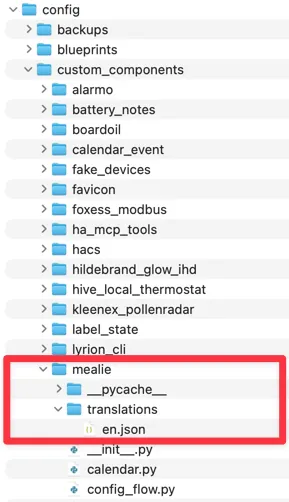
Copy your modified integration to your Home Assistant custom_components directory. You should have something like this:
Restart Home Assistant
Restart Home Assistant to load your custom integration and have it replace the core version.
If all goes well, you should see your custom integration loaded correctly in Home Assistant. A red box icon in the bottom right indicates that it is overriding the core integration.
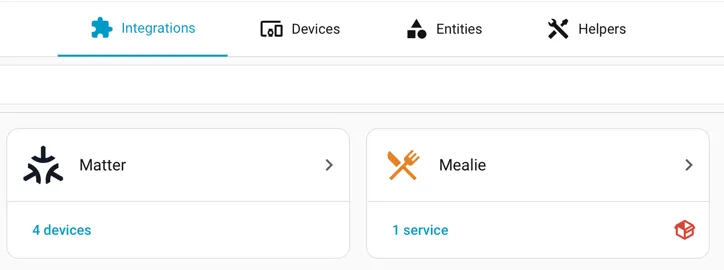
If you do not see the red box icon, Home Assistant is still using the core integration instead of your custom one. Double-check the steps above and look in the logs for clues to help track down the issue.
Removing your custom integration
If you want to revert to using the core integration, simply delete the custom integration from your custom_components directory and restart Home Assistant. The core integration will be used again automatically.
Going further
The manifest.json file also lists any dependencies, if there is an update to a dependency you need for a fix you can change the version here and it will get pulled down in preference to the core dependencies.